4
/19
Enter the Weight of your parts with Set Weight,
into the spaces, if they all have same weight. Use "0" if unknown. If the parts have different weights, enter each weight individually. Next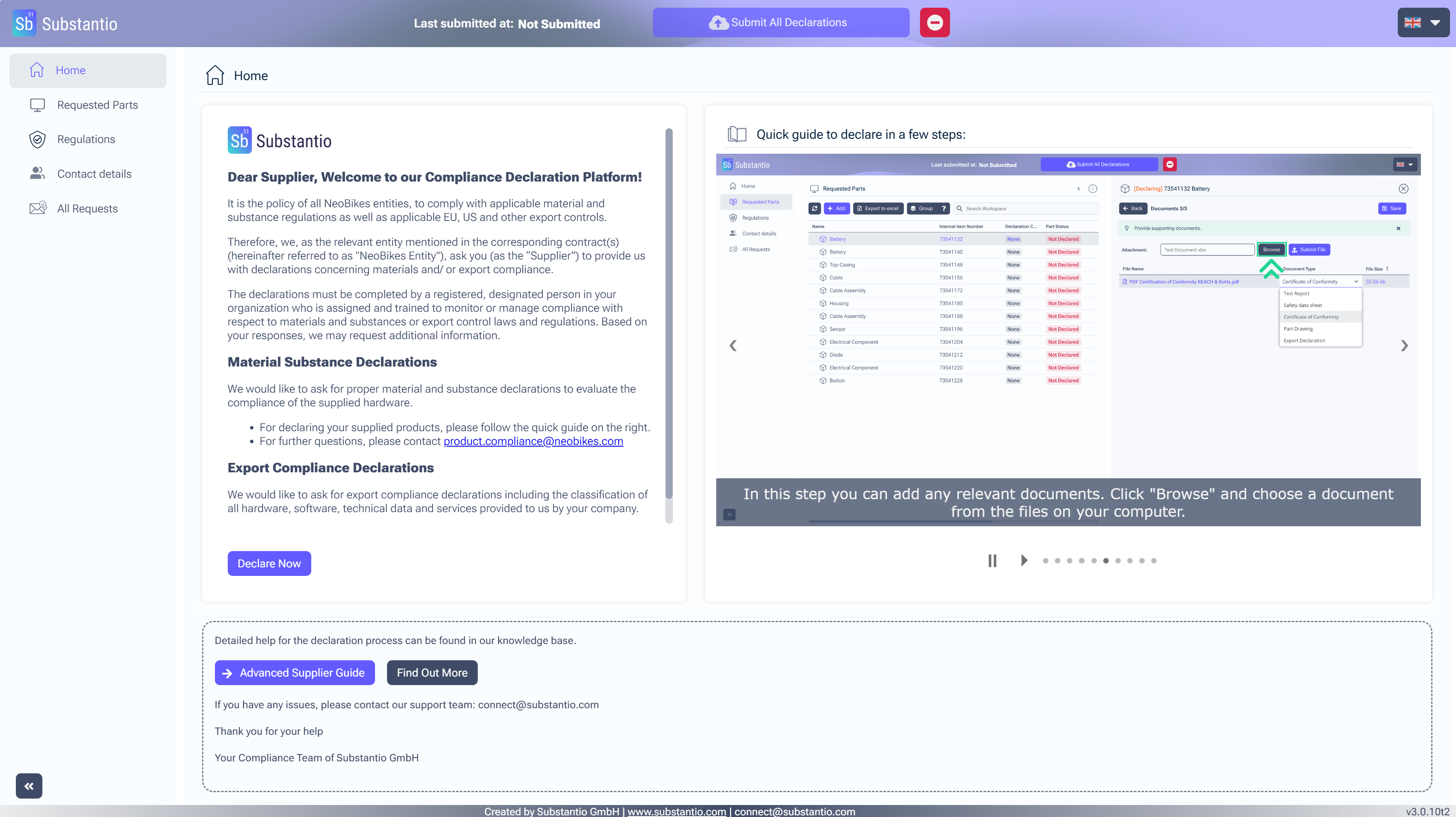
You can access the Supplier Declaration Platform via the link provided in the email you received from your customer. Please click the Declare now button to begin the declaration process.
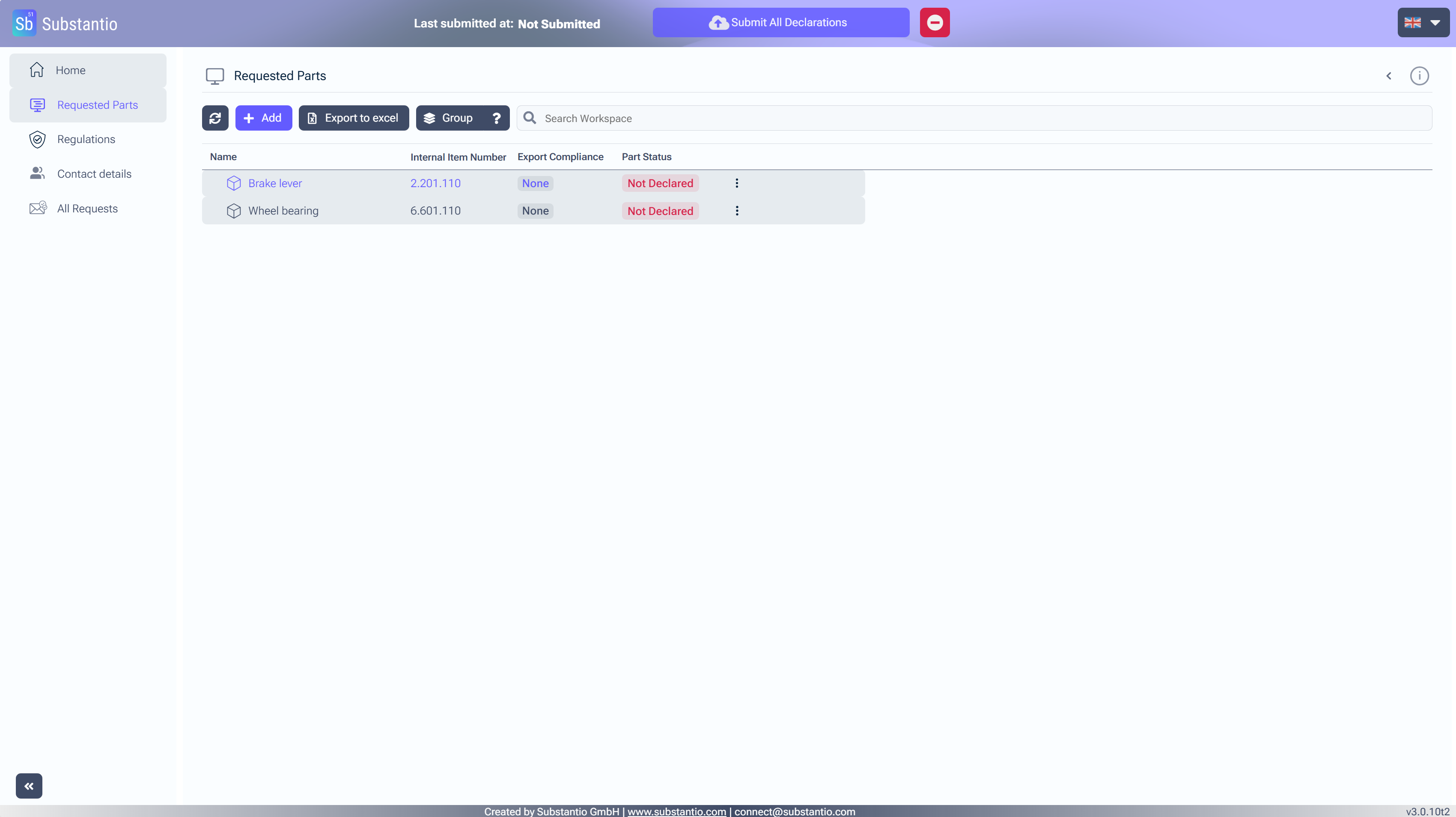
Press the Shift key while clicking on the parts to declare them in group.
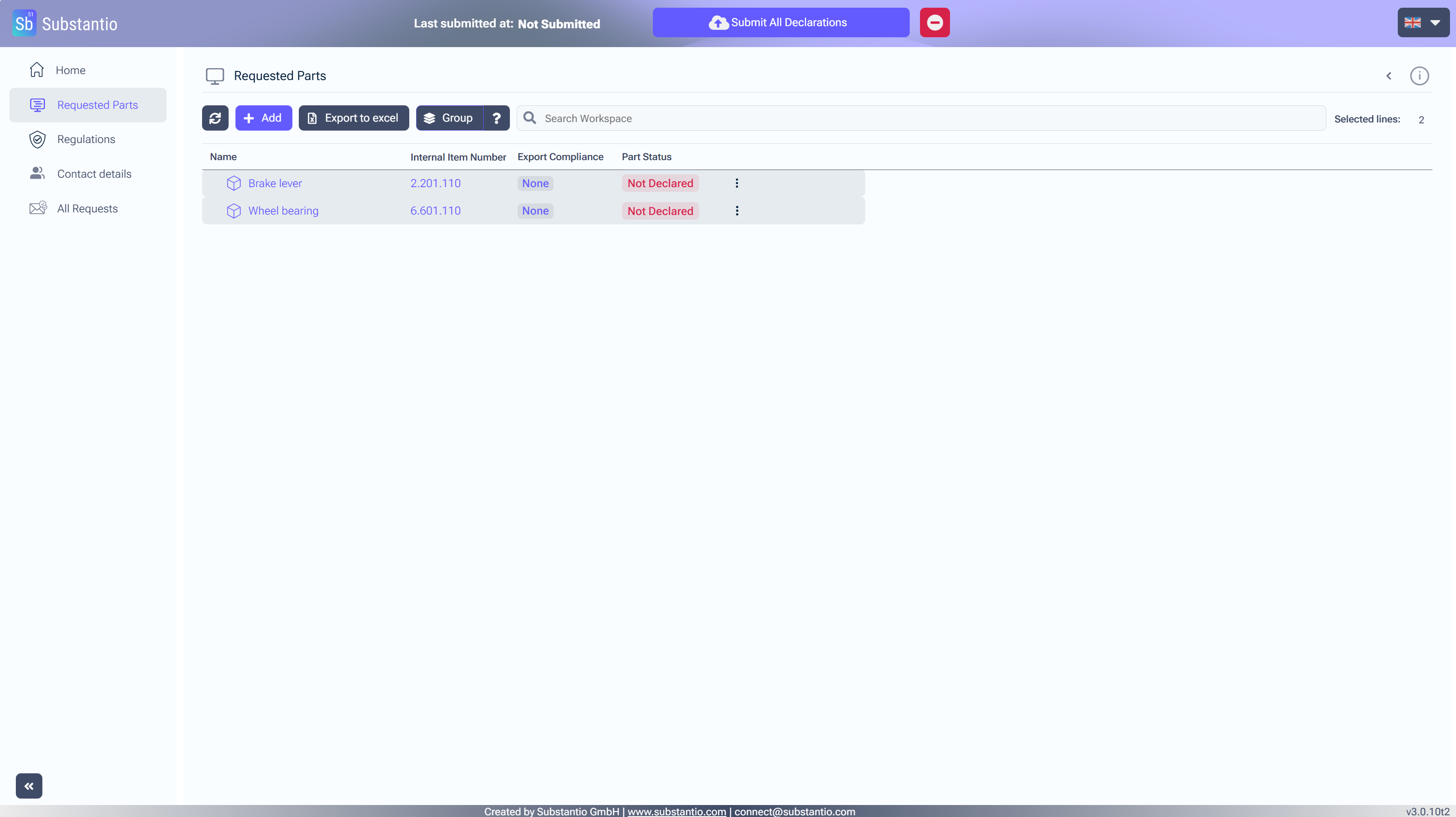
Click the Group button.
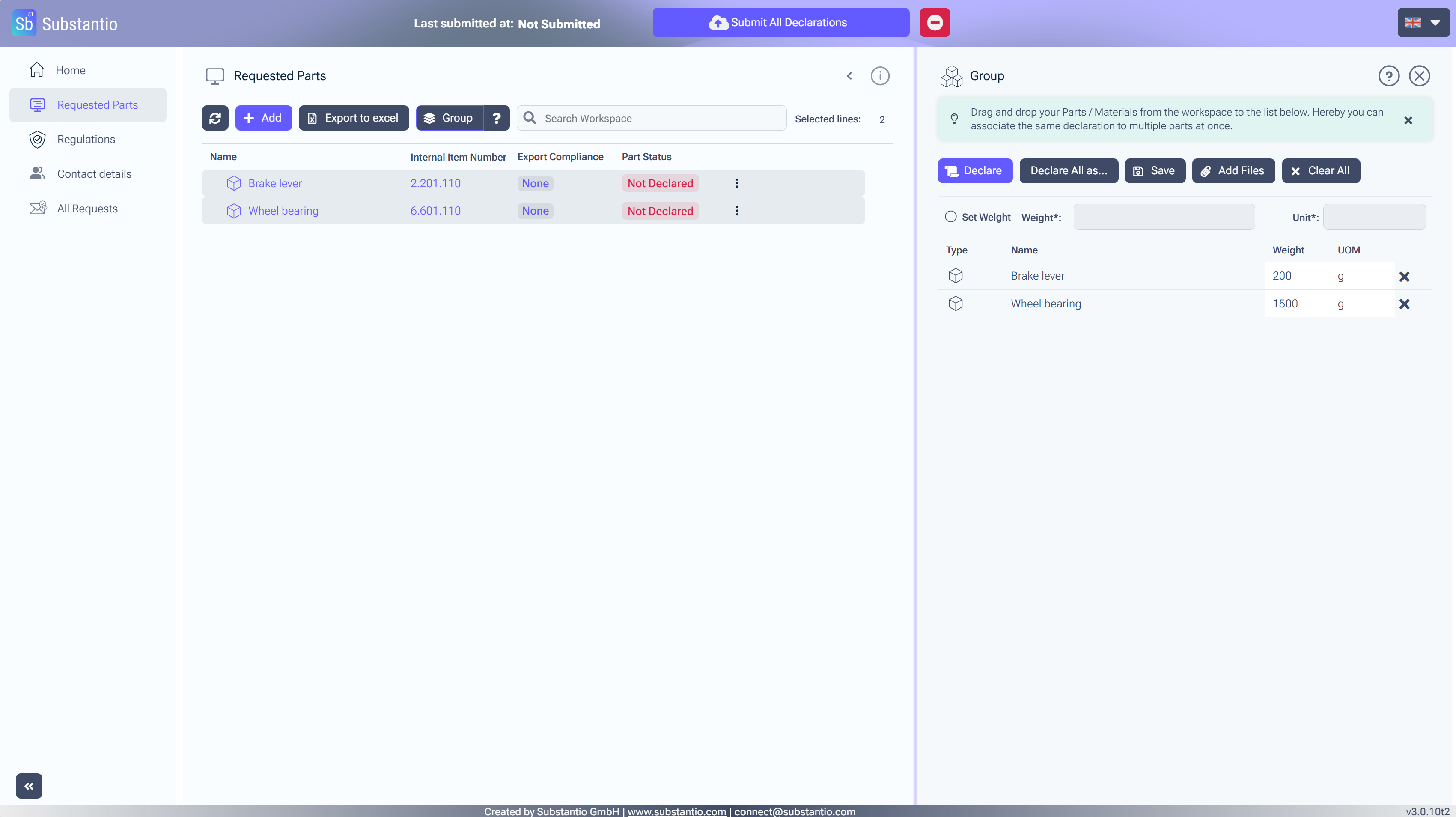
Enter the Weight of your parts with Set Weight,
into the spaces, if they all have same weight. Use "0" if unknown. If the parts have different weights, enter each weight individually. NextThan click on Declare.
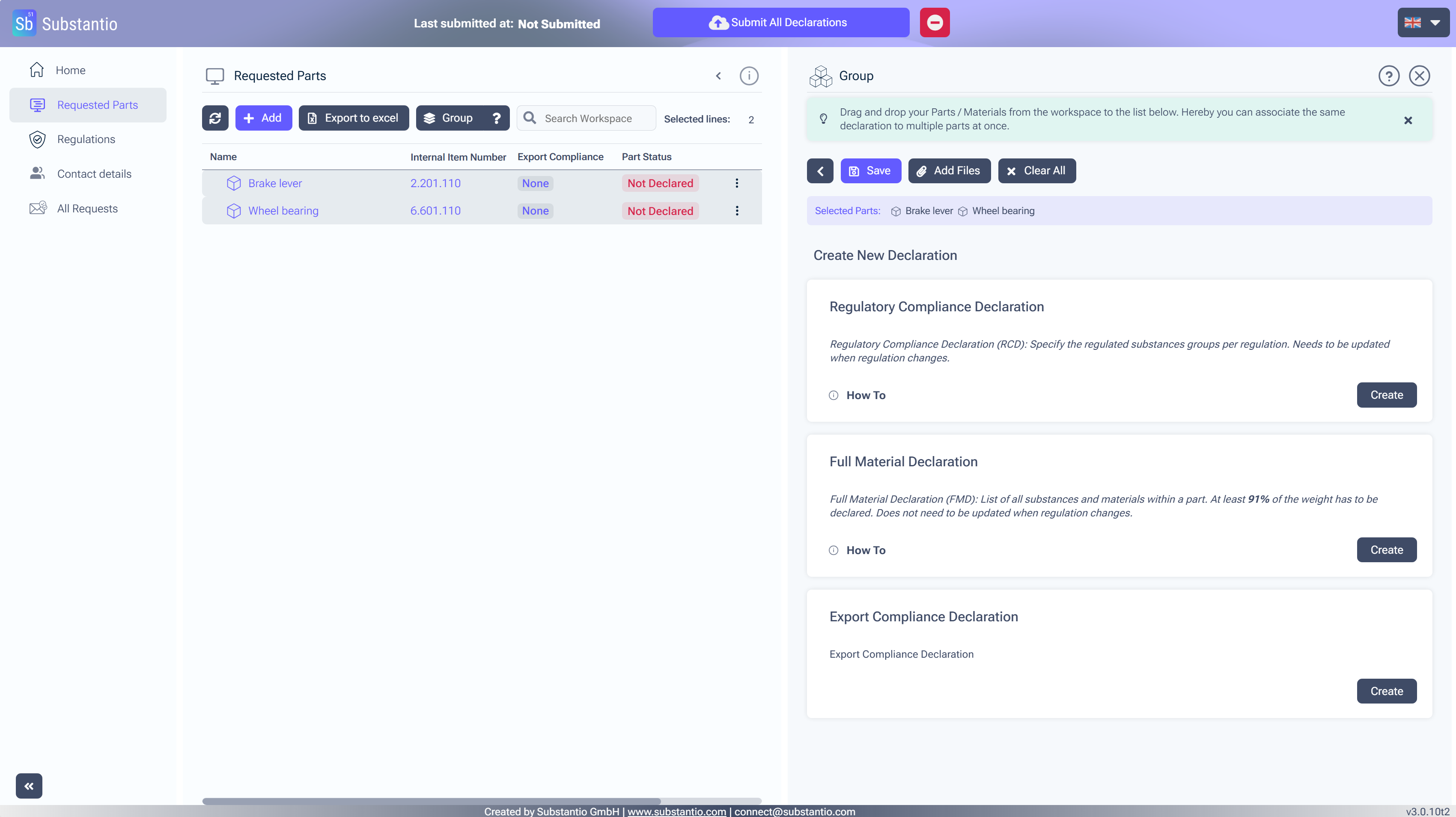
Click the Create button to begin creating your new export declaration.
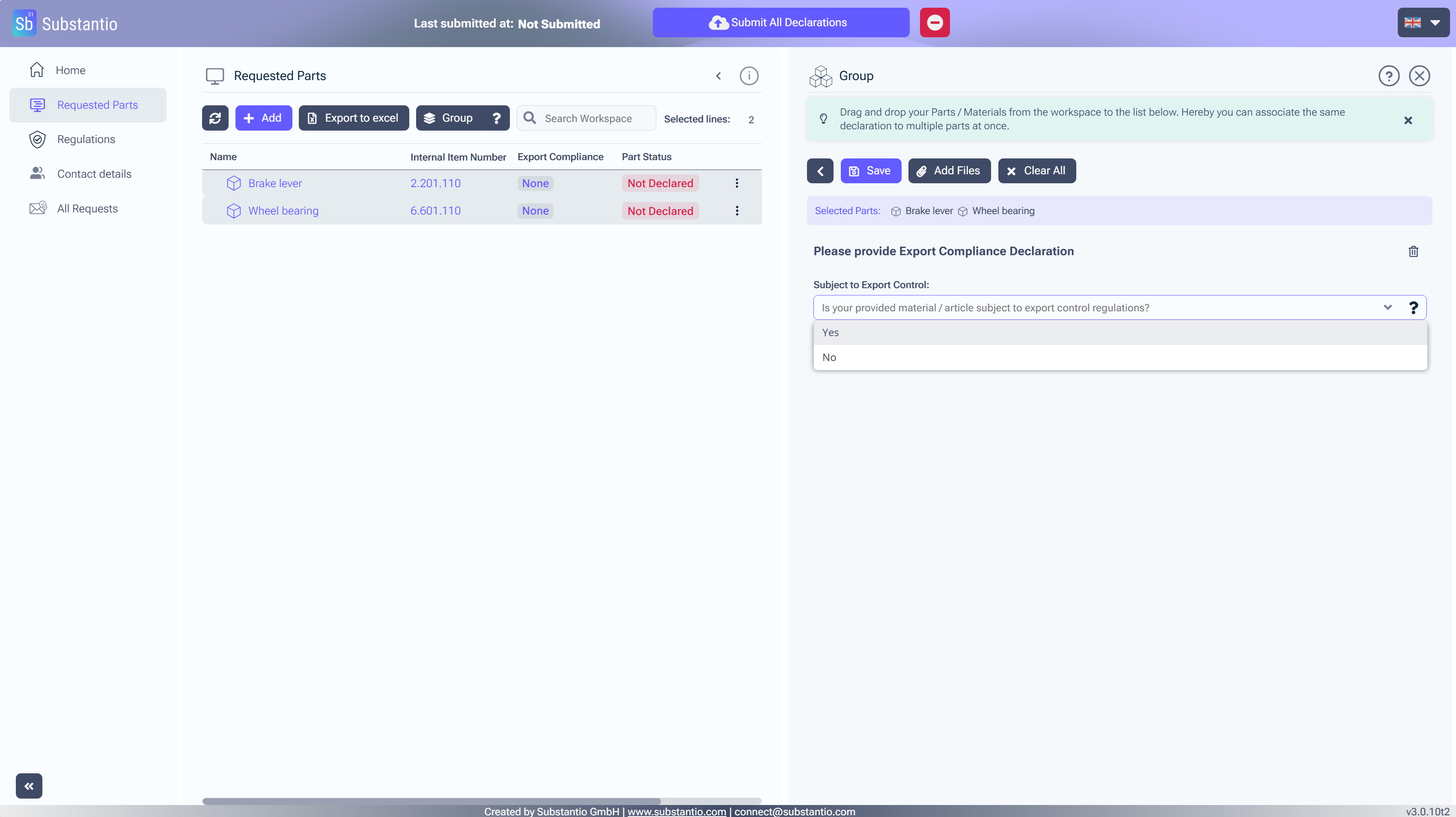
Please answer the questions on the right-hand side and select the regulations applicable to your product.
Next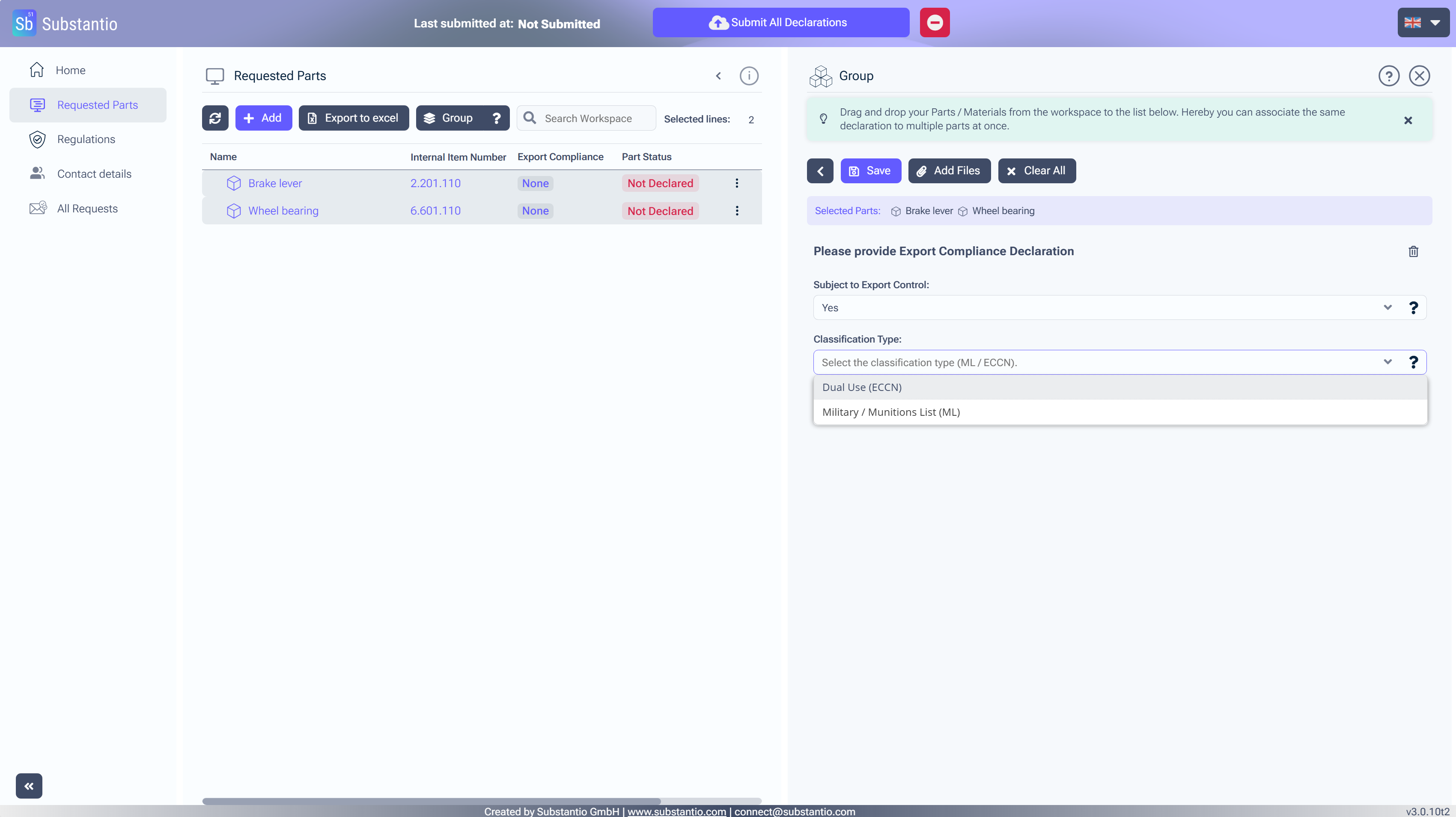
Please answer the questions on the right-hand side and select the regulations applicable to your product.
Next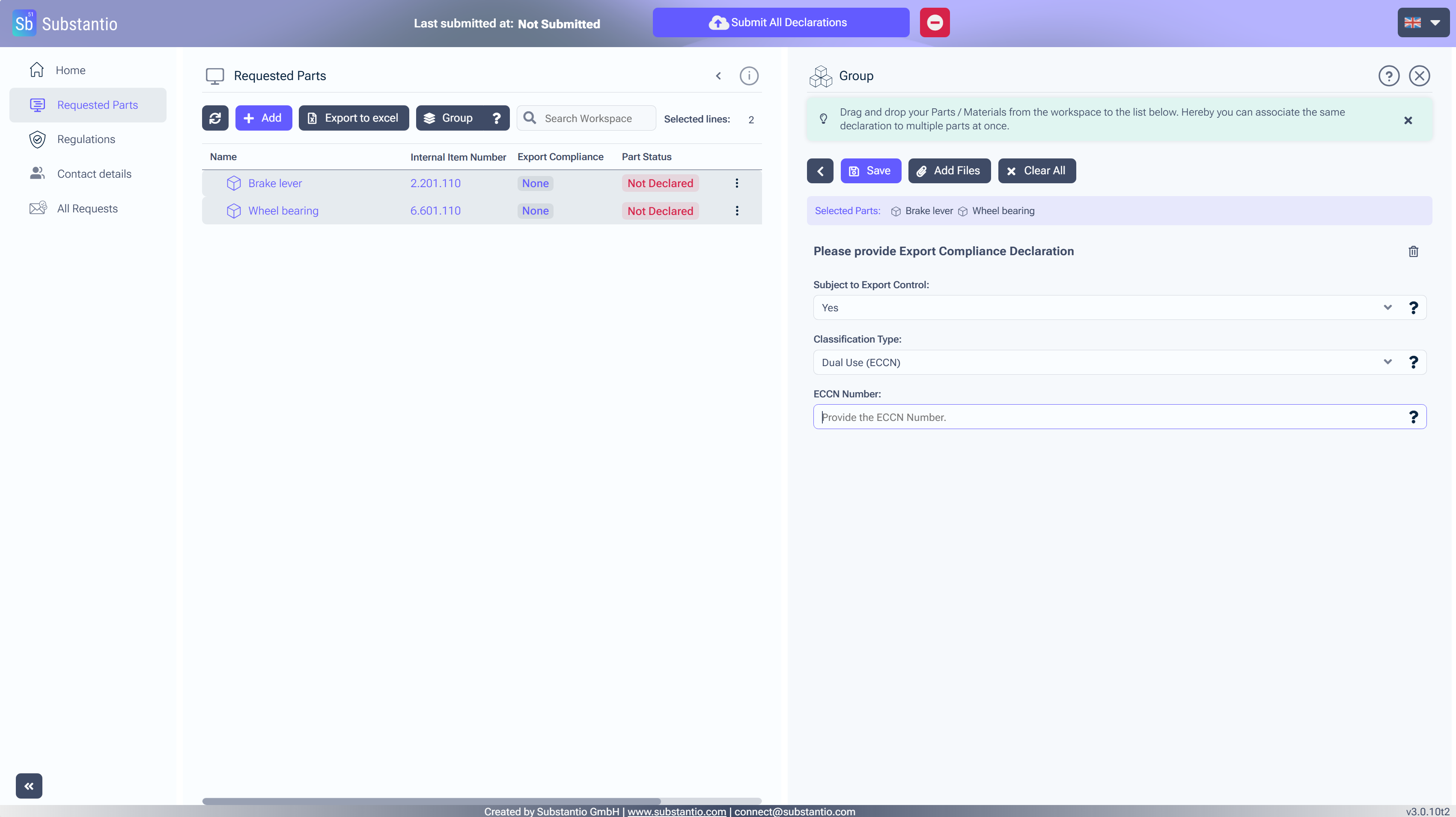
If you selected Dual Use, please enter the corresponding ECCN number. You can find this information in the Commerce Control List (CCL).
Next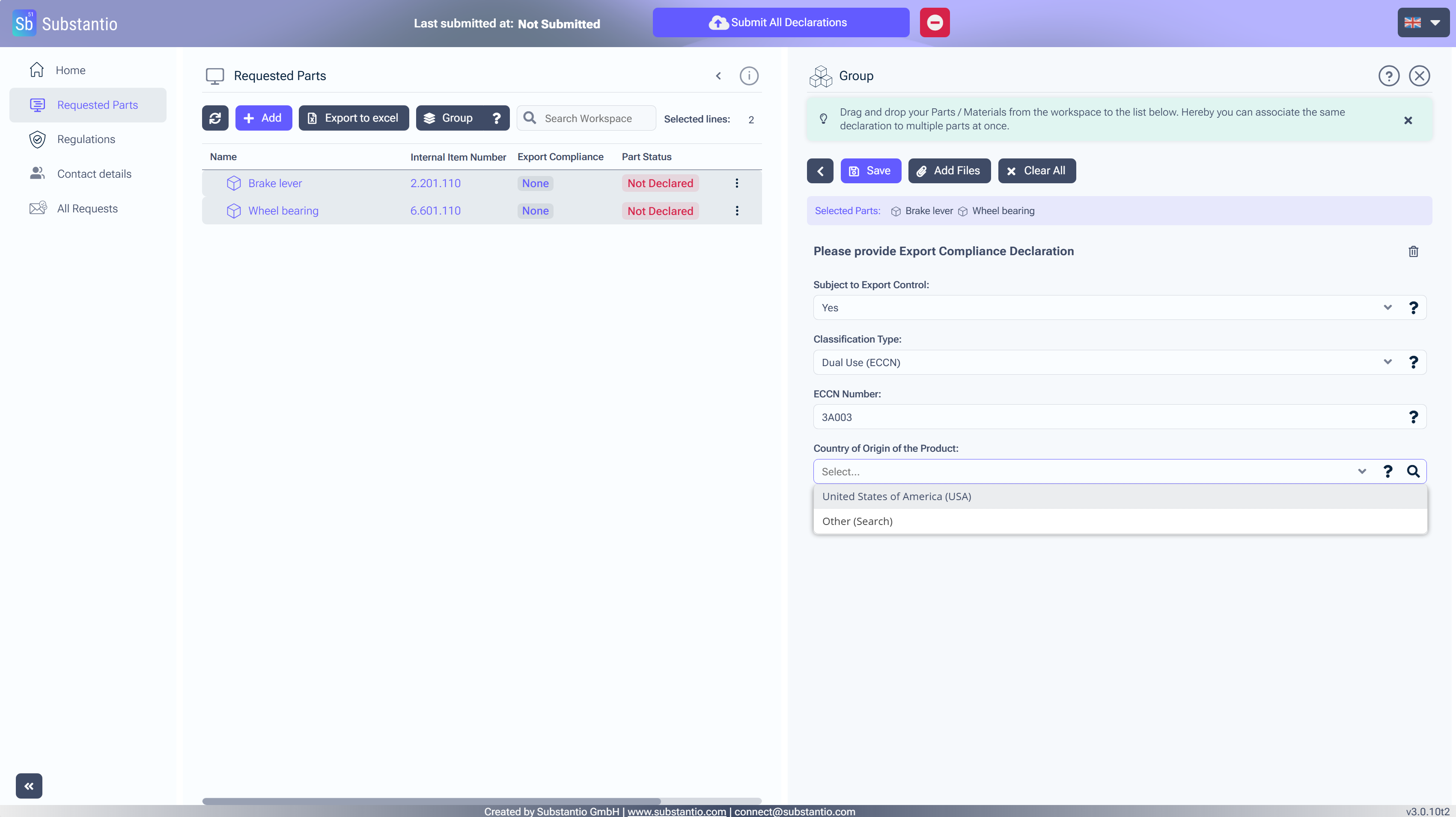
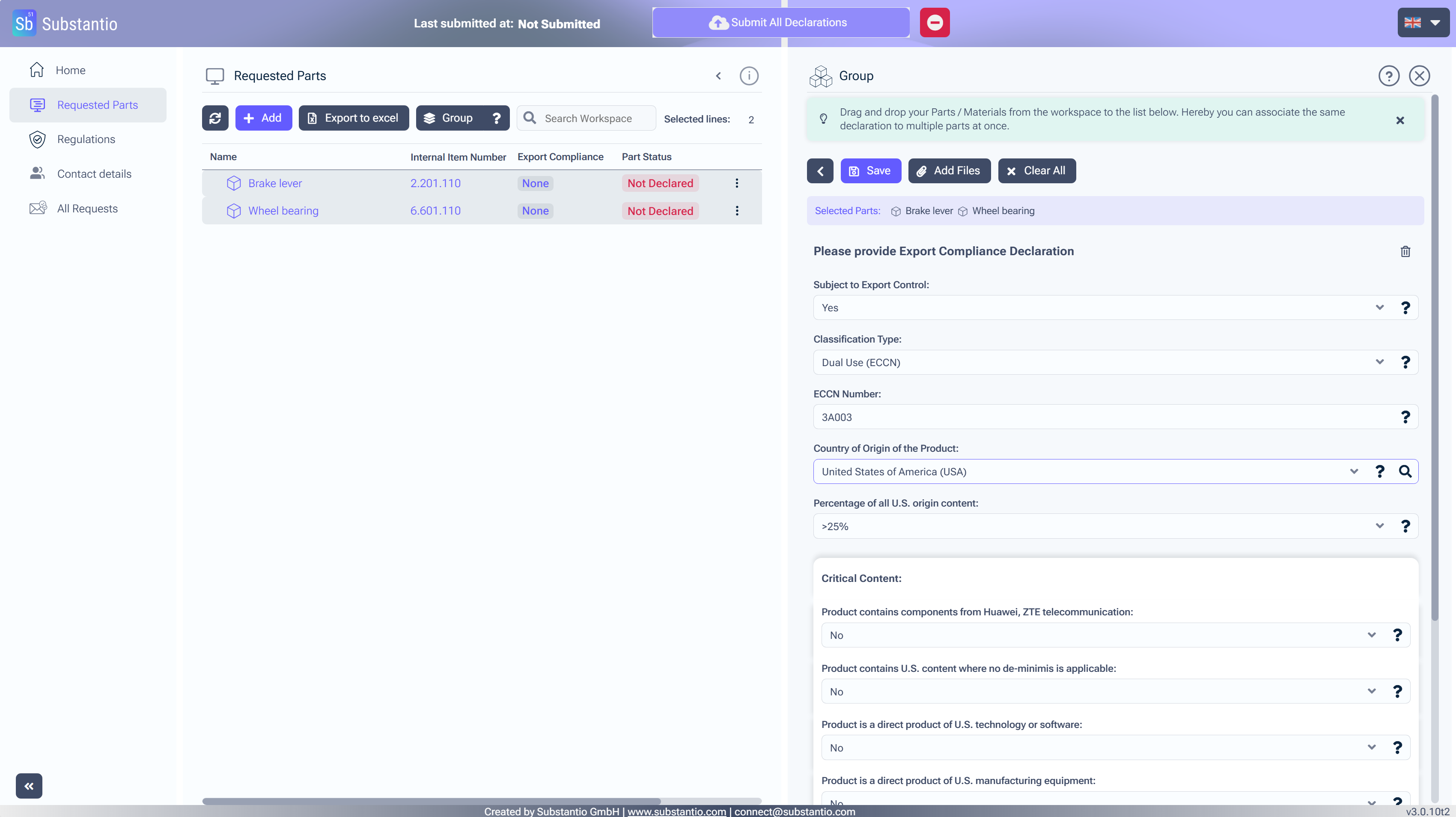
Enter the percentage share of the product originating from this country of origin and answer the following questions.
NextPlease click on the Add files button to upload your supporting files.
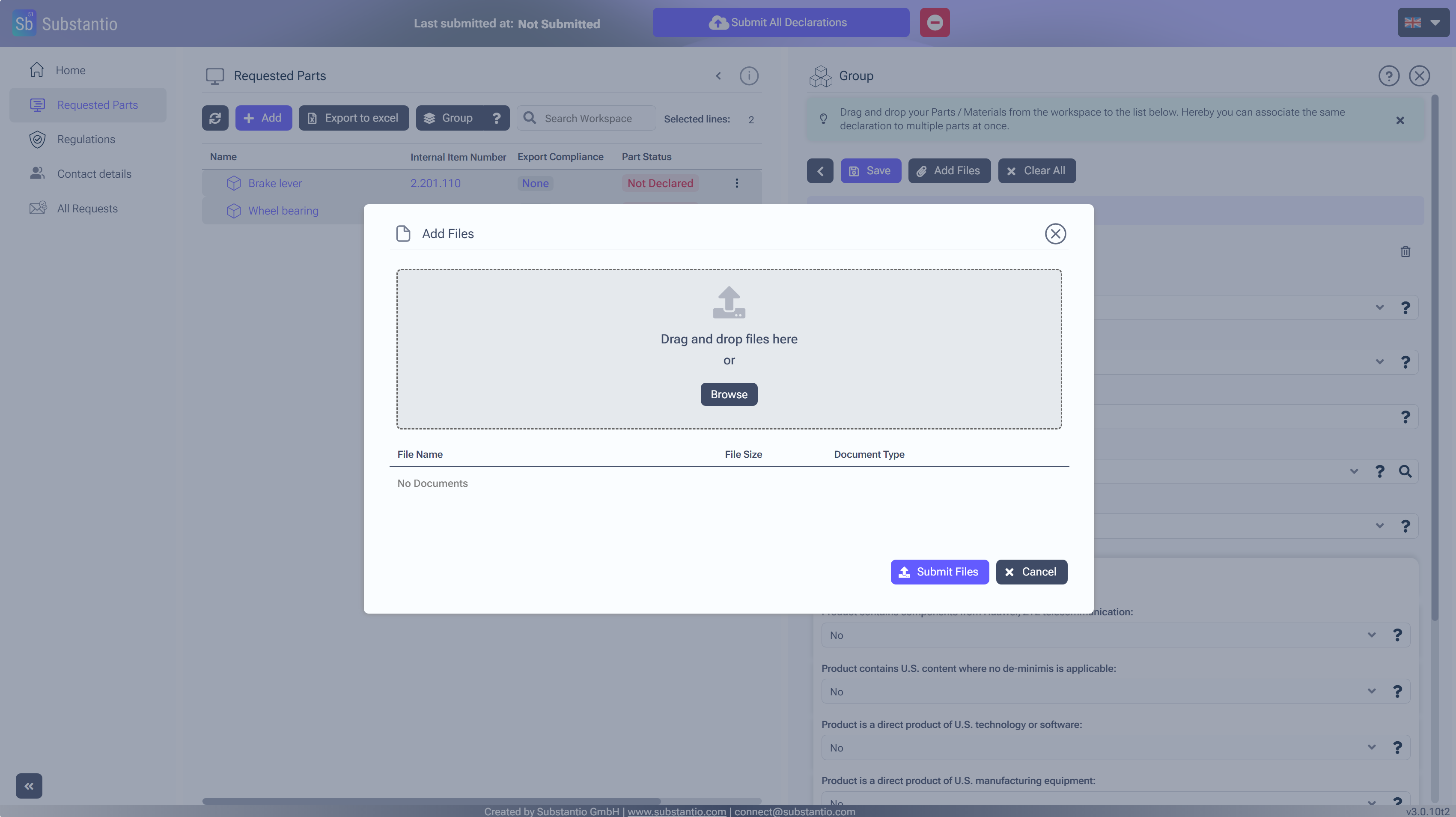
Click at the Browse button, so you can upload any required document.
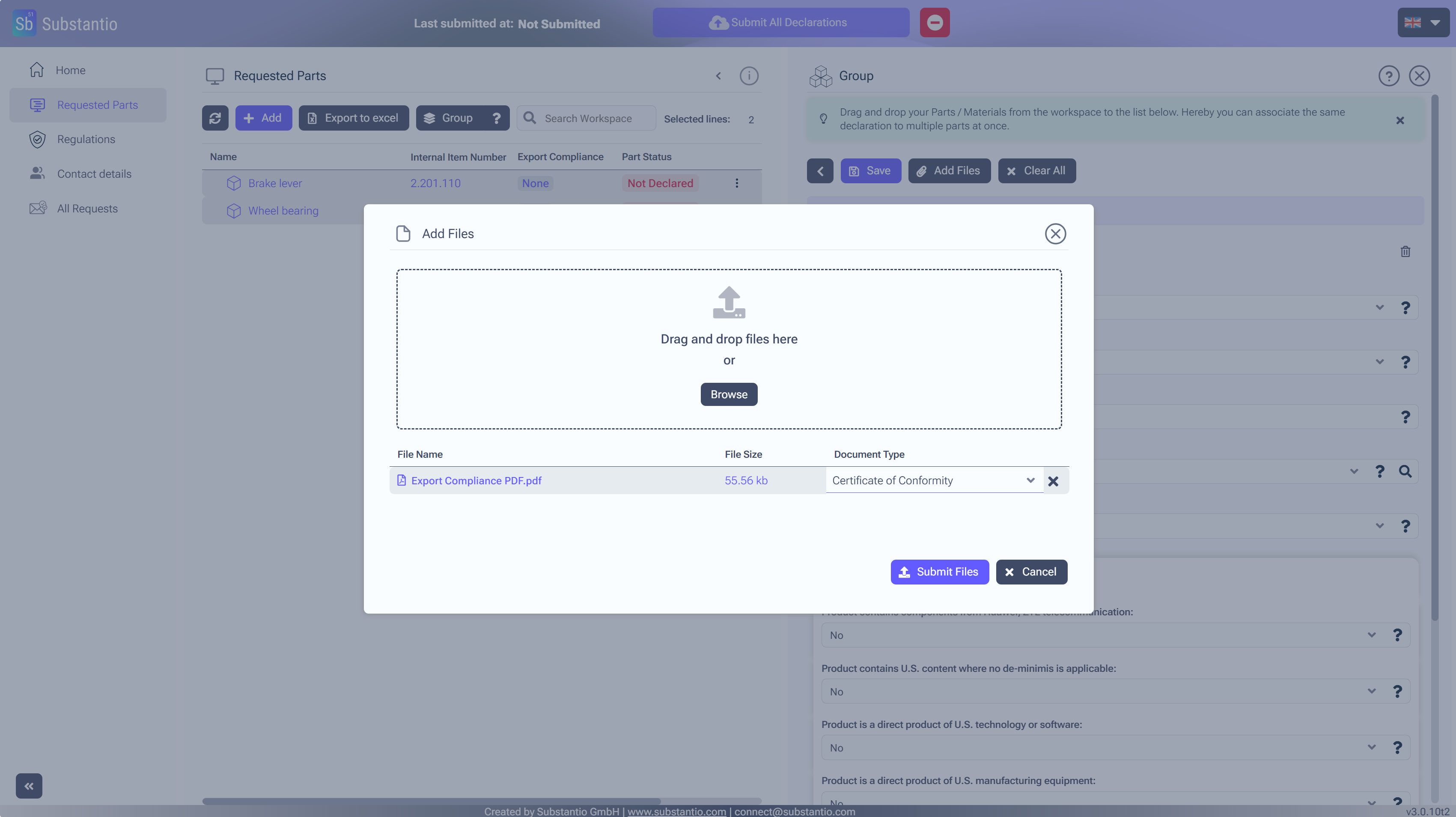
Please determine your document type.
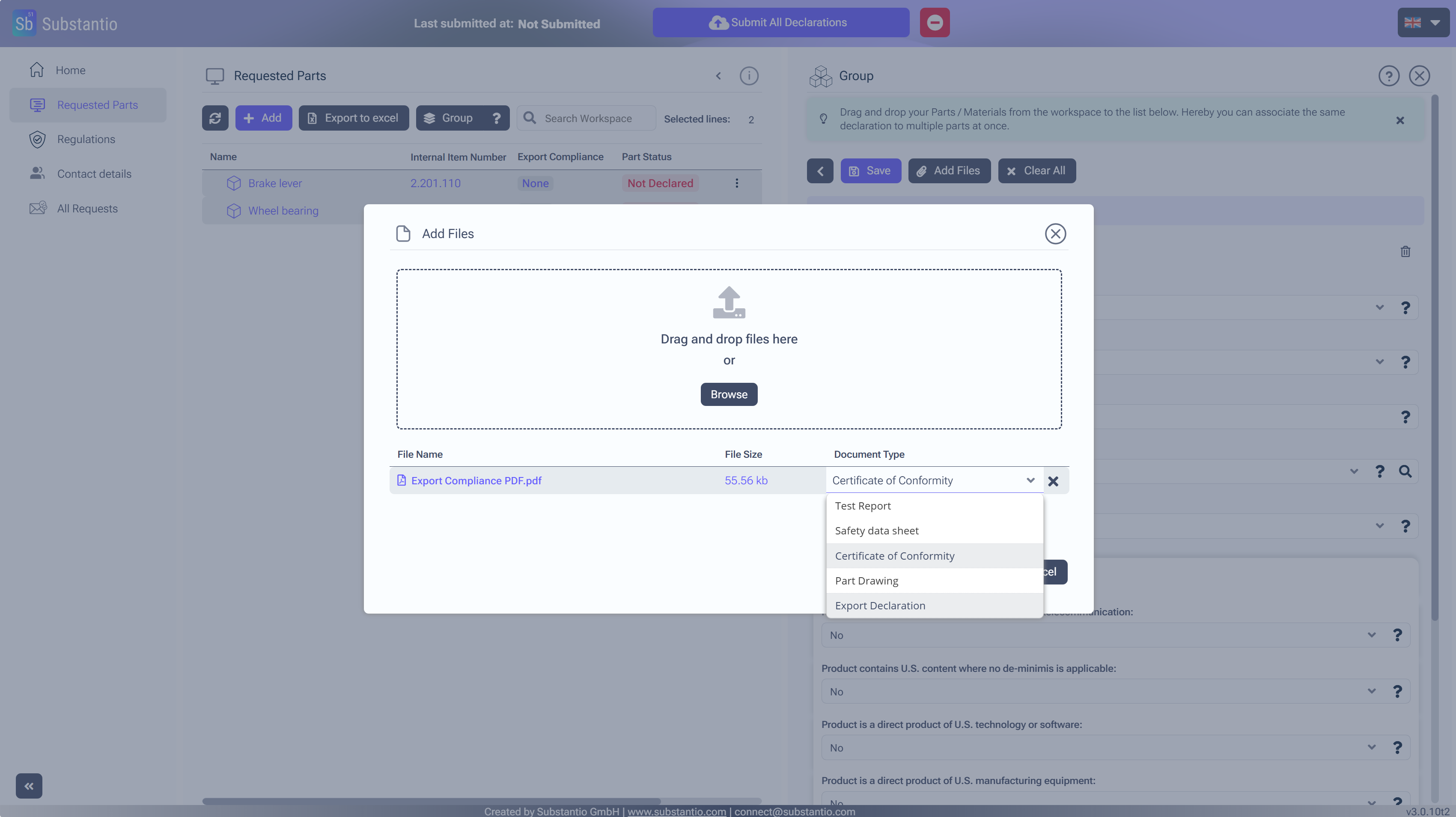
Choose Export Declaration.
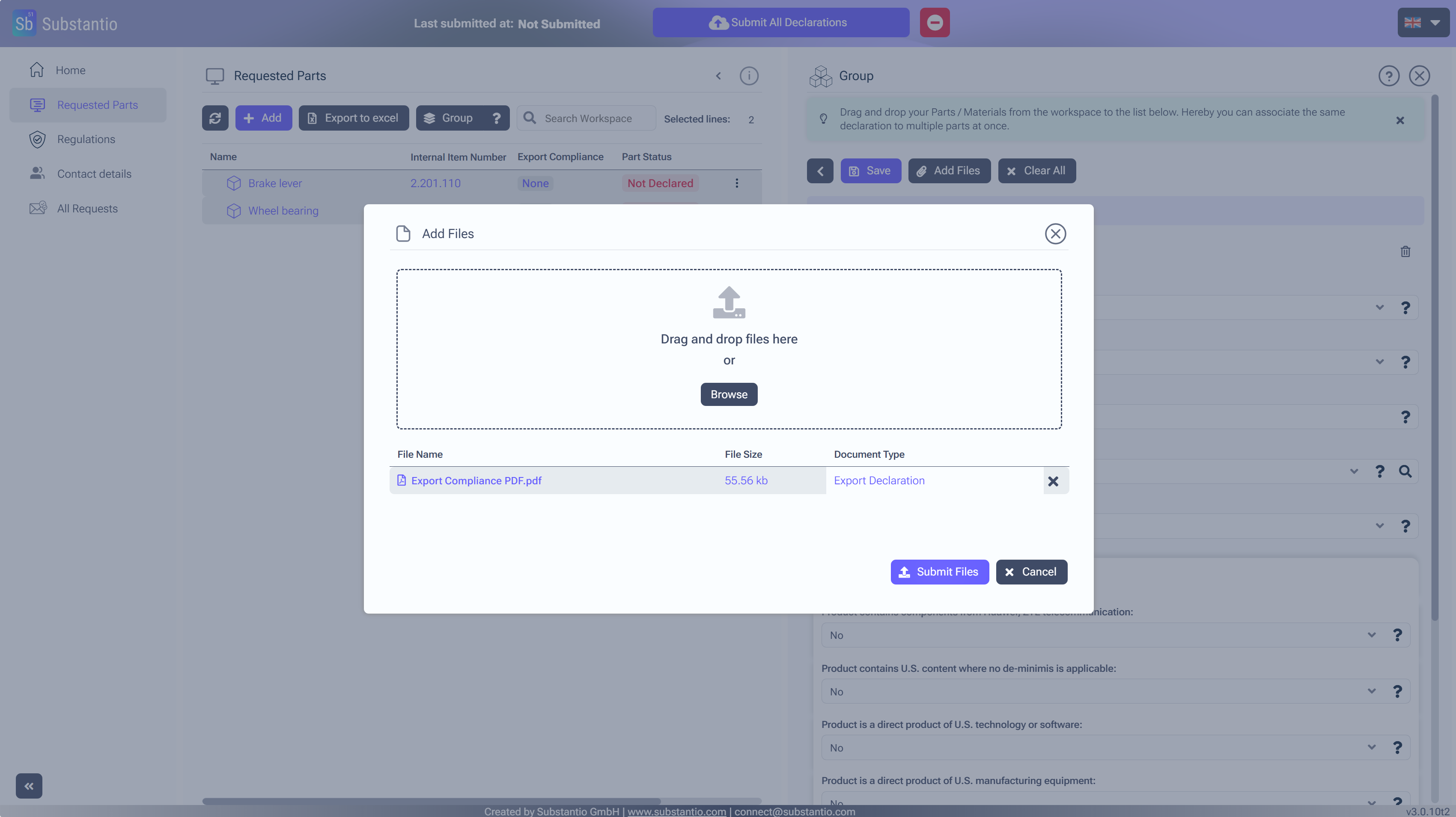
To upload the files click on Submit Files.
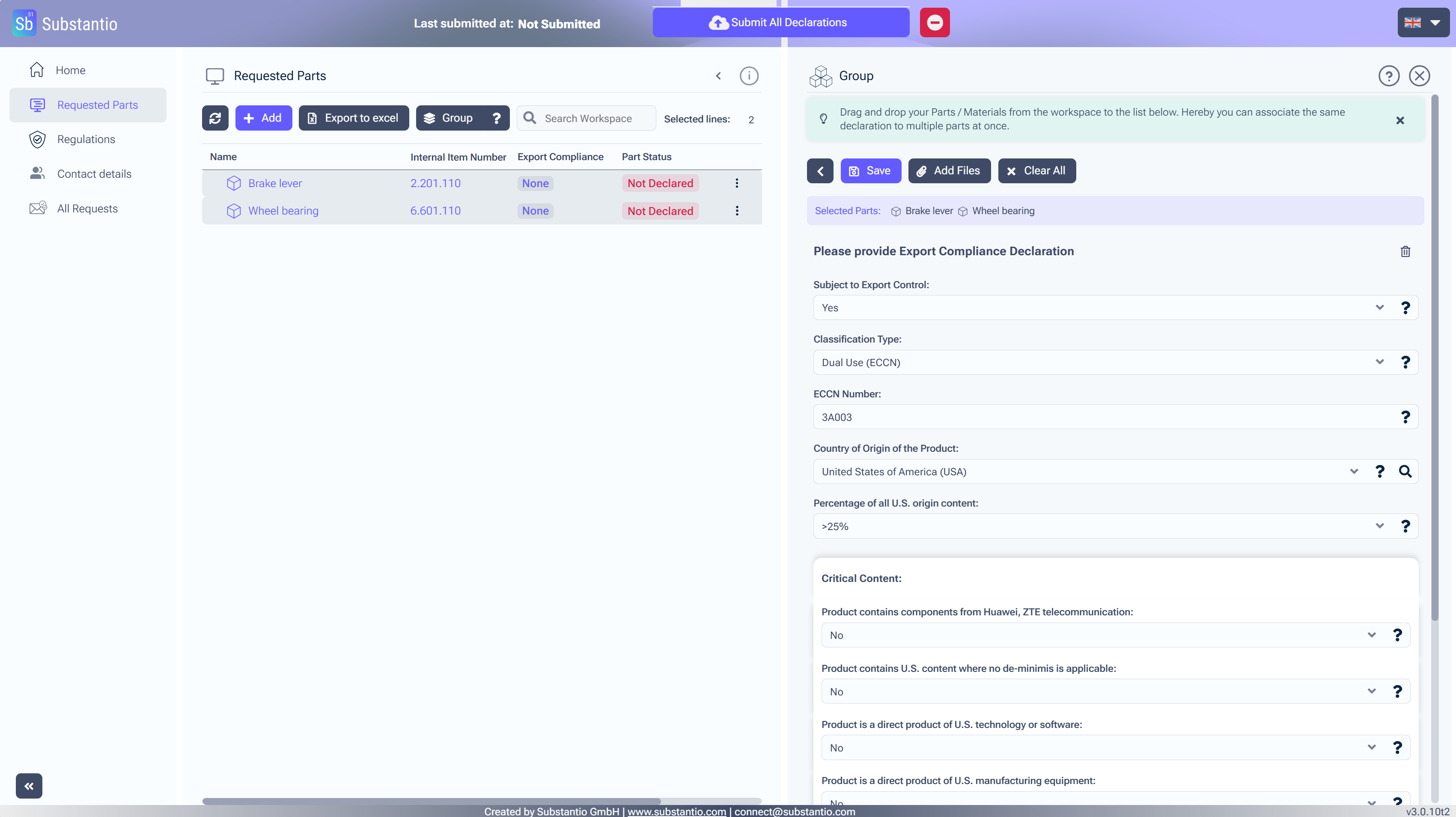
Please Save your changes.
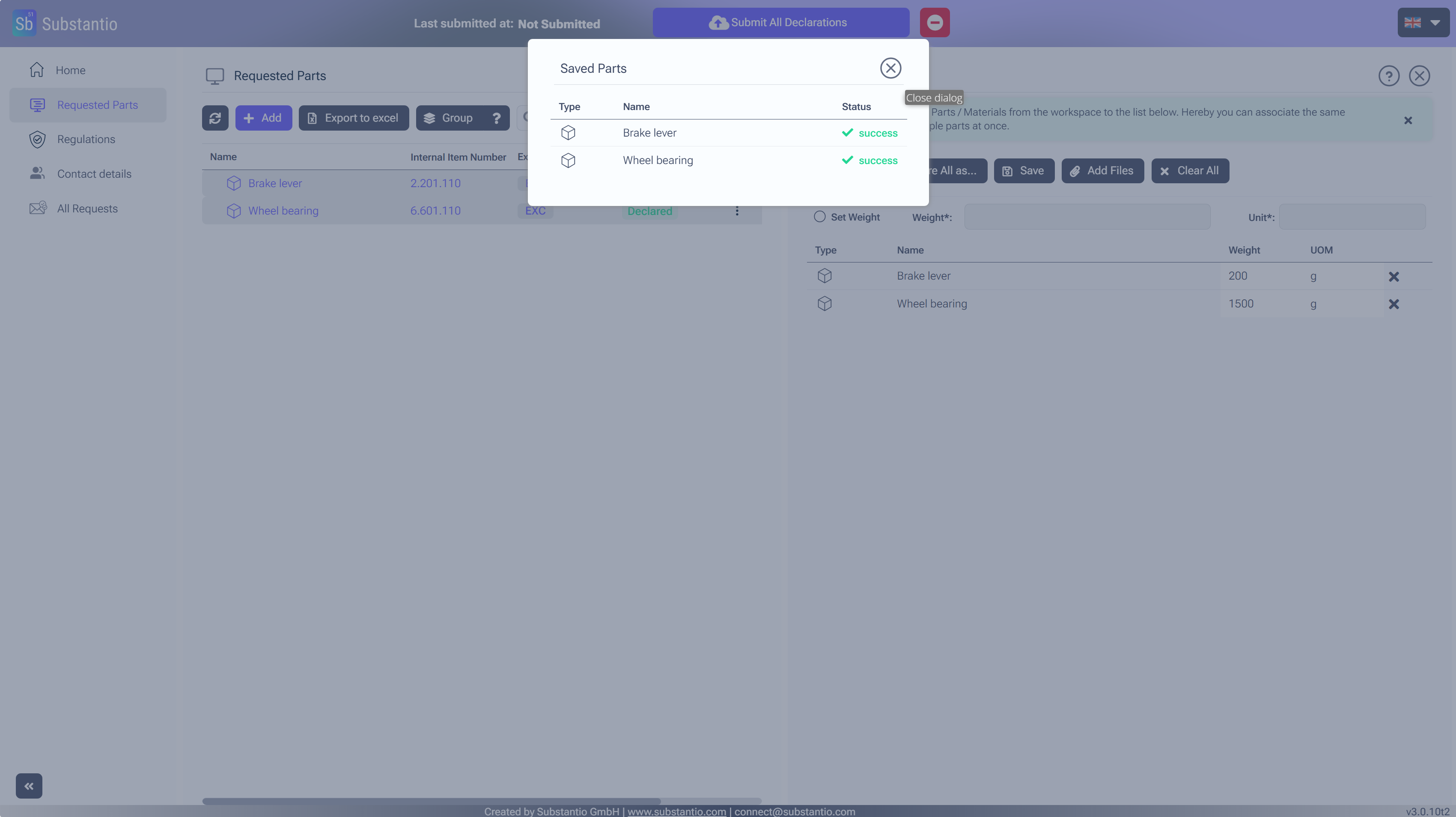
Now its safed.
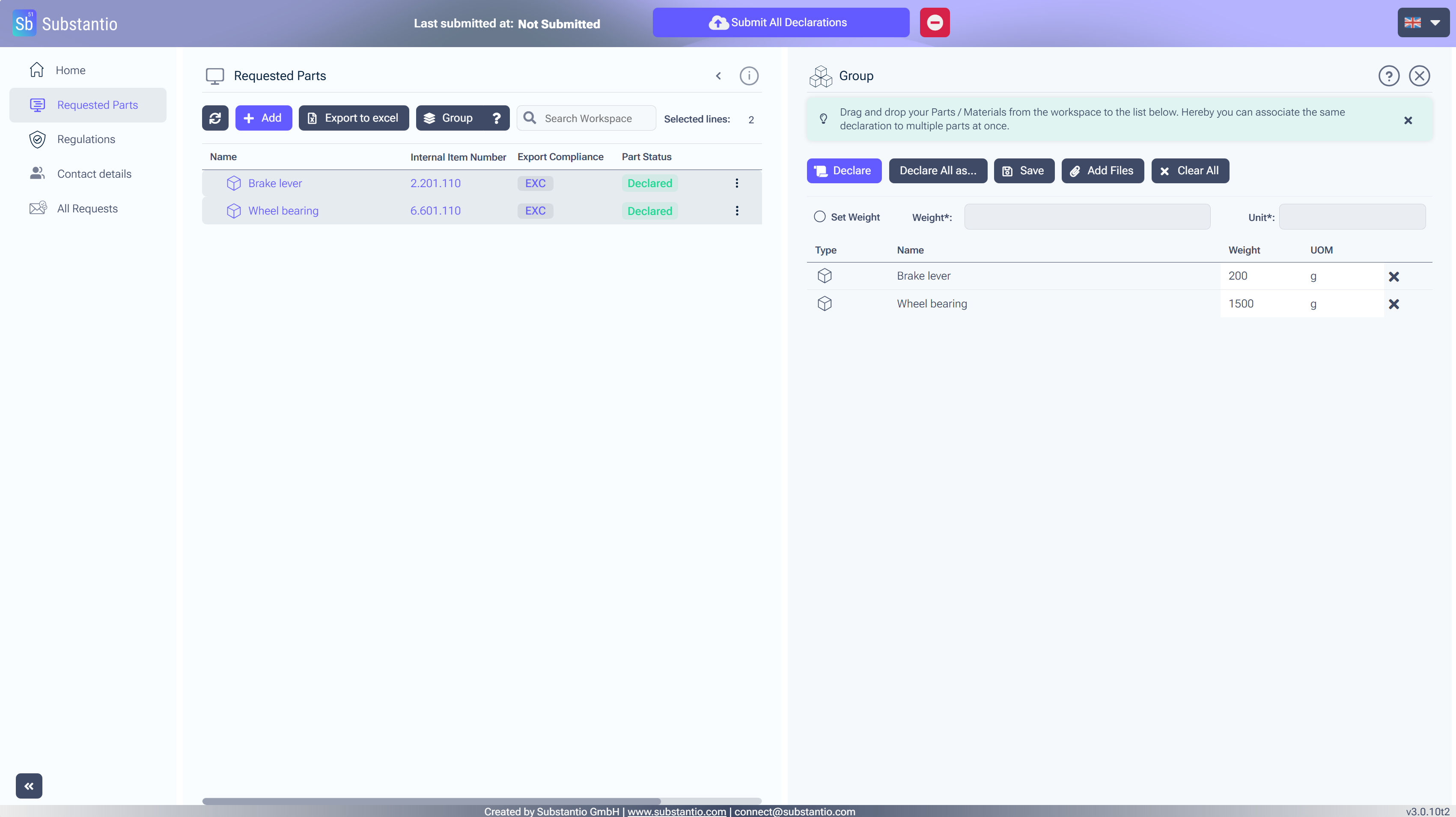
Once all parts have been declared, click the Submit All Declarations button to send your information to the customer. Make sure all parts are declared before submitting.

